Creating and Managing Notes
Access: Account Admins
Private notes — viewable only by account admins — are a powerful way to share information with teammates across your Whereabouts account. In this article, we'll look at how to create, edit, and retrieve notes across the system.
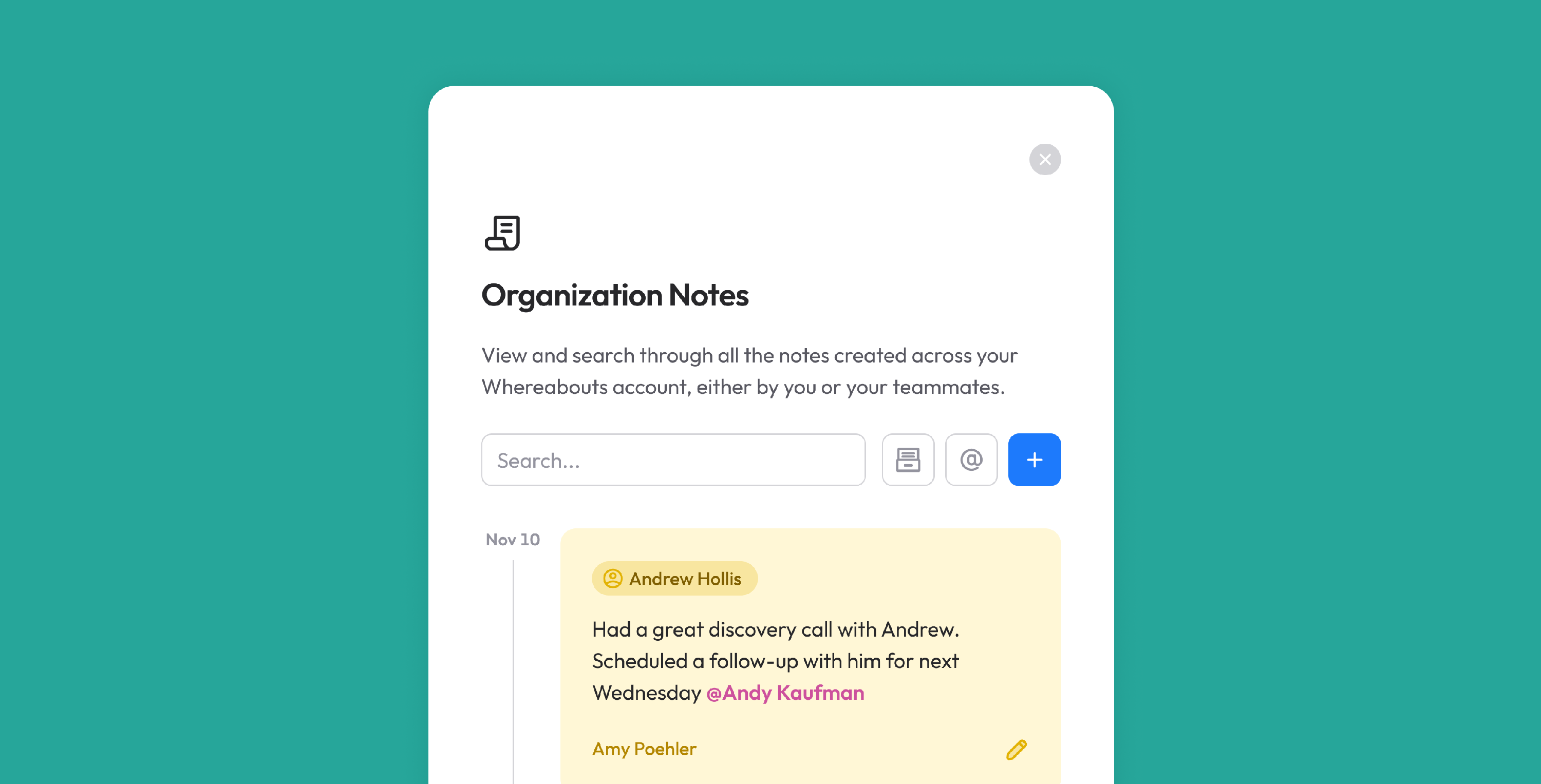
The Organization Notes Panel
The easiest place from which to create and find all notes is in the Organization Notes panel. To open it, simply click on the note icon in the top menu-bar:

In the Organization Notes panel, you can:
- Create a new note and associate it with an item in your account.
- Search across all of your team's notes
- View archived notes
- View your notes (both those you've created and those you've been @ mentioned in)
Creating a note
To create a new note, click the blue + button next to the search bar.
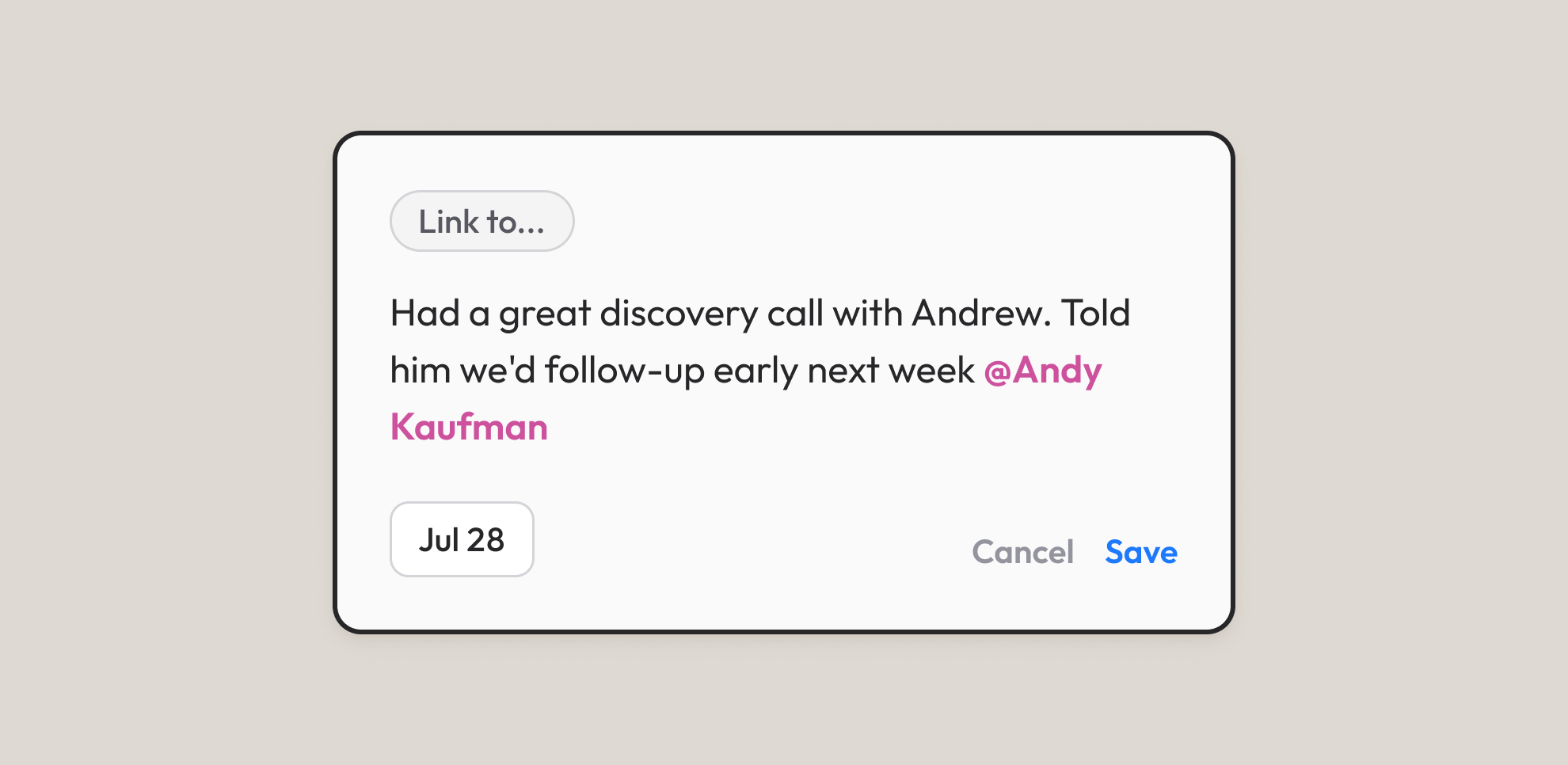
In the note creator, you can associate your note with any number of items in your Whereabouts account (like listings, people, and widgets) by clicking the Link to... button at the top-left. This opens a searchable drop-down, making it easy to find the item you'd like to associate.
In your note itself, you can also @mention any of your teammates, making it easy to use notes as simple cross-team to-dos.
Lastly, you can change the time-stamp of your note if you want it to be date-specific (e.g. I had a discovery call on this date). Note that only past dates can be selected, and that, by default, we'll set a new note's date to the current day.
When you're done, click the Save button.
Editing a note
After your note has been saved, you may edit it at any point by clicking the pencil icon in the bottom-right. In edit mode, you can:
- Edit the note's text
- Change the note's time-stamp
Archivethe note (helpful if you want to keep a record of it)Deletethe note. This action is permanent and can't be undone.
Filtering notes
In the Organization Notes panel, there are a few helpful tools to filter notes.
- A search bar
- A filter to view all
archivednotes - A filter to view
mynotes - Additional filters to view notes of a certain
type(people, widgets, etc.)
