The Person Panel
When you click on a person's card in the People App, their Person panel will appear on the right-hand side. Here, you can:
- Apply any of your custom tags to this person
- View and edit the person's contact info
- View listings this person is connected to
- Connect this person to listings in your Directory
- View the person's full timeline
- Add time-stamped notes to the person's timeline
We'll go into these features and workflows below.
The person panel isn't just confined to the People app! We make it available in other parts of the Whereabouts experience, keeping the info you need at your fingertips and in context.
Editing the person's Contact Info
In the person's card at the top of the panel, click on Edit Contact Info to pull up all of their contact info form. Here, you can edit their name, birthday, primary phone, primary address and more. If you need to capture additional phone numbers or email addresses, you can do so at the bottom of the form, under Additional Contact Info
Beneath the person's card, you'll find a tab menu with two options: Info and Timeline.
Info
Under the Info tab, you can edit the scratchpad and view the person's connected listings.
Editing the Scratchpad
The Scratchpad is a pinned, evergreen note in the person panel that can be edited by anyone on your team at any time. Use it to jot down important, private comments about this person; working hours, preferred pronouns, favorite pizza toppings — whatever you want to keep track of!

Connected Listings
Beneath the Scratchpad, you'll find the listing(s) that this person is connected to. For each listing, you can set the person's title. Here, you can also connect this person to any existing listing in your Directory.
Timeline
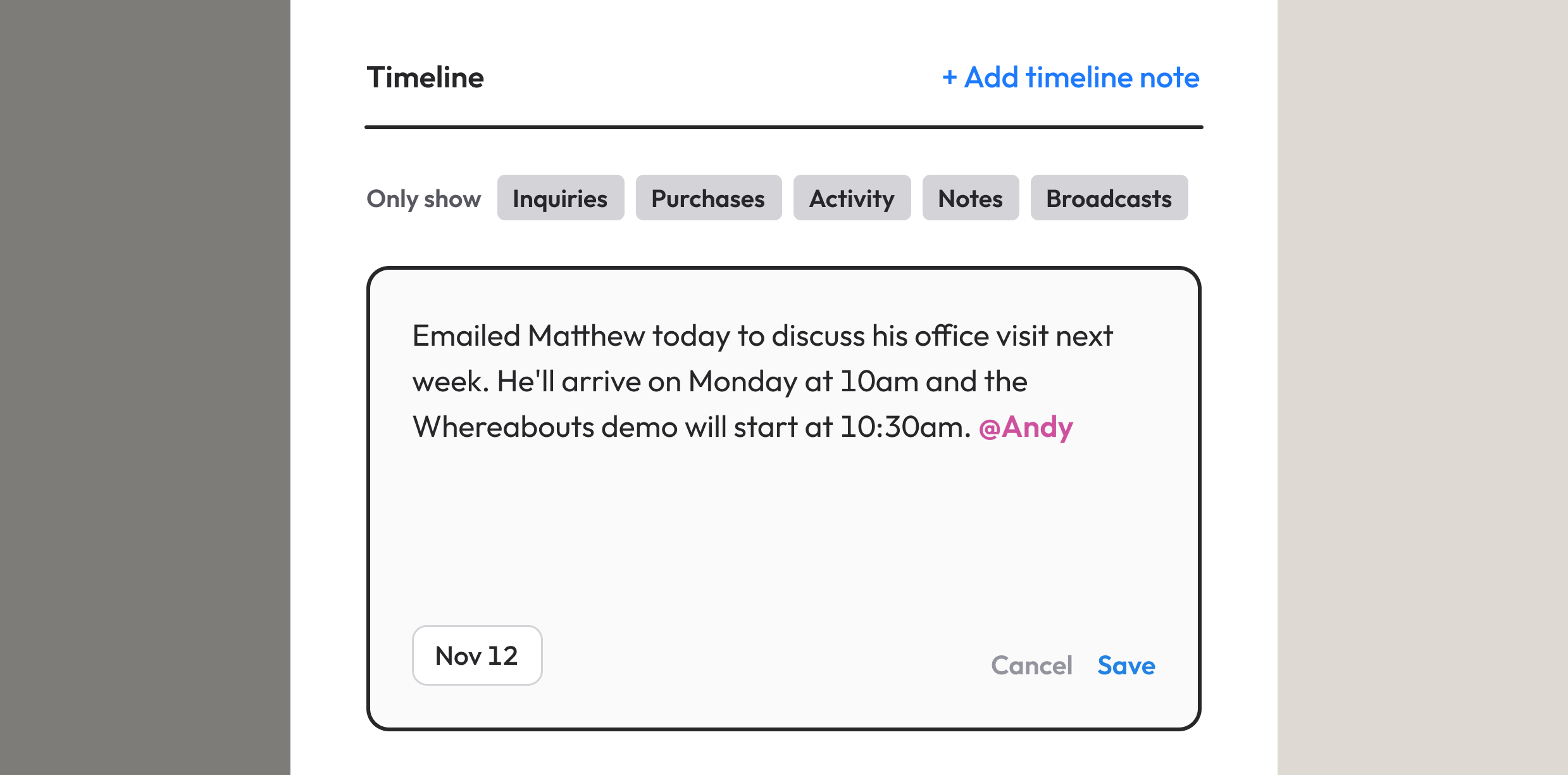
In the timeline, we display the person's activity across your Whereabouts account. Filters are available (e.g. Activity , Purchases , etc.) to see a specific type of timeline event. You can also add time-stamped notes to the person's timeline.